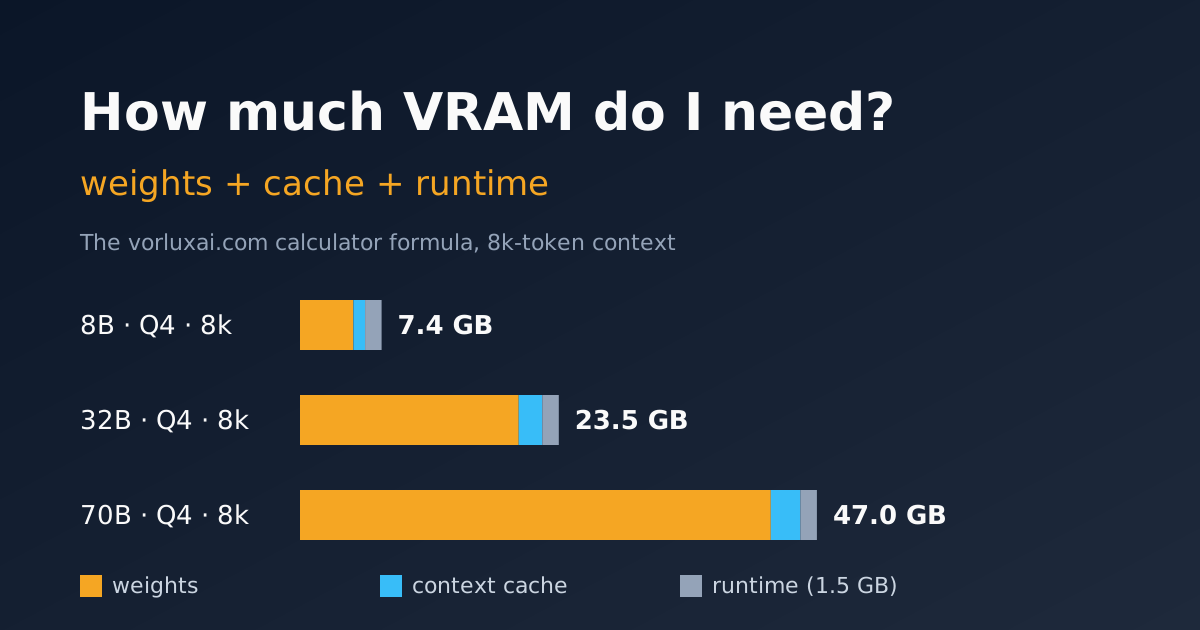
By the end of this post you will be able to work out, with pen and paper, how much memory a model needs before you download it. We do the full sum for an 8B, a 32B and a 70B. An 8 GB laptop is enough to start, and the same sum tells you when you need more.
What you need
- A calculator or a spreadsheet. Nothing else for the sum itself.
- The model’s
config.jsonon Hugging Face. We use it for the cache. - Optional: Ollama installed, to compare the sum with what your machine measures.
The formula is the same one the calculator on each page of our product catalogue uses. Follow the steps and your numbers match the site’s.
Step 1: work out what the weights weigh
A model is a list of numbers. The name tells you how many (8B is 8 billion). The quantisation tells you how much each one takes:
weights (GB) = parameters (billions) × bits per weight ÷ 8| Quantisation | Bits per weight | What it is |
|---|---|---|
| Q4_K_M | 4.85 | 4 bits with a few layers kept more precise. Ollama’s default |
| Q8_0 | 8.5 | 8 bits, practically the original |
| FP16 | 16 | the original weights |
The Q4_K_M and Q8_0 values are llama.cpp’s figures for those GGUF types. If you want to know why 4 bits is usually enough, see how to pick the right GGUF file.
An 8B at Q4_K_M: 8.0 × 4.85 ÷ 8 = 4.85 GB. The same model at FP16 is 16 GB. Quantisation is the biggest lever you have.
Step 2: add the context cache
While you chat, the model stores two vectors (K and V) per token, in every layer. That is the context cache. It does not depend on the file’s quantisation. It depends on the architecture and on how many tokens you allow:
cache per token (bytes) = layers × KV heads × head dimension × 4
cache (GB) = cache per token × context tokens ÷ 1,000,000,000
The 4 is 2 vectors (K and V) times 2 bytes at FP16. All three values are in the model’s config.json: num_hidden_layers, num_key_value_heads and head_dim. If head_dim is missing, divide hidden_size by num_attention_heads.
| Model | Layers | KV heads | Head dim | Cache per token | Source (read 2026-10-06) |
|---|---|---|---|---|---|
| Llama 3.1 8B | 32 | 8 | 128 | 0.131 MB | config.json |
| Qwen 2.5 32B | 64 | 8 | 5,120 ÷ 40 = 128 | 0.262 MB | config.json |
| Llama 3.3 70B | 80 | 8 | 128 | 0.328 MB | config.json |
We read both Llama configs from unsloth’s copy because Meta’s repository asks you to register. The architecture is identical.
Look at the KV heads: 8 in all three. Without that trick (grouped-query attention), a 70B with 64 heads would store eight times as much cache.
Step 3: add the runtime and compare with your usable memory
Add 1.5 GB of runtime (compute buffers and the engine itself). Then subtract what the system keeps:
- Dedicated VRAM (a graphics card): total memory minus 0.5 GB.
- Unified memory or system RAM: minus 3 GB up to 16 GB, minus 4 GB up to 32 GB, minus 6 GB above that.
That gives you usable memory. The calculator’s rule: it fits comfortably if the need is 85% of usable memory or less. Between 85% and 100% it is a tight fit. Above that, it does not fit.
Three worked examples
We ran the site’s own functions (memoryNeededGb, usableMemoryGb and fitStatus, in src/lib/hardware-math.ts) with Node on 2026-10-06. The numbers below are what the code returns, rounded.
| Example | Weights | Cache | Runtime | Total |
|---|---|---|---|---|
| Llama 3.1 8B, Q4_K_M, 8k tokens | 8.0 × 4.85 ÷ 8 = 4.85 GB | 0.131 × 8,192 = 1.07 GB | 1.5 GB | 7.42 GB |
| Qwen 2.5 32B, Q4_K_M, 8k tokens | 32.8 × 4.85 ÷ 8 = 19.88 GB | 0.262 × 8,192 = 2.15 GB | 1.5 GB | 23.53 GB |
| Llama 70B, Q4_K_M, 8k tokens | 70.6 × 4.85 ÷ 8 = 42.80 GB | 0.328 × 8,192 = 2.69 GB | 1.5 GB | 46.99 GB |
A note on the 32B: the calculator uses 32.8 billion parameters and Qwen’s model card says 32.5. The difference is 0.2 GB. For the 70B we use 70.6, the Llama 3.1 70B figure, which shares its architecture with Llama 3.3.
Now against real machines:
| Memory | Usable | 85% line | 8B | 32B | 70B |
|---|---|---|---|---|---|
| 8 GB GPU | 7.5 GB | 6.38 GB | tight | no | no |
| 12 GB GPU | 11.5 GB | 9.78 GB | comfortable | no | no |
| 24 GB GPU | 23.5 GB | 19.98 GB | comfortable | no (by 0.03 GB) | no |
| 32 GB unified | 28 GB | 23.8 GB | comfortable | comfortable | no |
| 64 GB unified | 58 GB | 49.3 GB | comfortable | comfortable | comfortable |
The 32B on a 24 GB card is the case that teaches most. At 8k context it misses by 30 MB. Drop to 4k and the cache falls to 1.07 GB: total 22.46 GB, a tight fit. Context decides.
Why context weighs so much
The cache grows in a straight line with tokens. For the 8B above:
| Context | Cache | Total at Q4_K_M |
|---|---|---|
| 4k | 0.54 GB | 6.89 GB |
| 8k | 1.07 GB | 7.42 GB |
| 32k | 4.29 GB | 10.64 GB |
| 128k | 17.17 GB | 23.52 GB |
A model that accepts 128k tokens does not mean you should reserve them. Ask for the context your task uses. Summarising an email fits in 4k; a 60-page contract does not.
Unified memory versus dedicated VRAM
A graphics card has its own memory (VRAM). The model has to fit there, and whatever does not fit runs on the CPU, much more slowly.
Apple silicon Macs, the DGX Spark (GB10, 128 GB) and AMD Strix Halo machines use unified memory. CPU and GPU share the same pool, so a 64 GB machine can give almost all of it to the model. That is why the reserve is larger: the operating system lives in the same memory.
What the spec sheet won’t tell you: fitting is not the same as running fast. Speed depends on memory bandwidth, and a dedicated GPU usually wins there. That is what the hardware catalogue by budget is for.
Check real usage
The sum is an estimate. Your machine has the last word:
ollama ps
# NAME           SIZE      PROCESSOR    CONTEXT
# llama3.1:8b    9.2 GB    100% GPU     32768
SIZE is the memory the loaded model takes. If PROCESSOR says anything other than 100% GPU, part of the model is on the CPU. Lower the quantisation or the context.
On a dedicated NVIDIA card, nvidia-smi confirms it:
nvidia-smi --query-gpu=memory.used,memory.total --format=csvOn the GB10 that query returns [N/A], because the memory is unified. Use ollama ps there.
Here is the sum against what we measured on our GB10, always with llama3.1:8b at Q4_K_M:
| Context | Site’s sum | Measured (ollama ps) | Date |
|---|---|---|---|
| 4,096 | 6.89 GB | 5.3 GB | 2026-09-09 |
| 32,768 | 10.64 GB | 9.2 GB | 2026-10-06 |
| 131,072 | 23.52 GB | 22 GB | 2026-09-09 |
The sum always comes out high, by 1.4 to 1.6 GB. The 1.5 GB runtime allowance is generous. We would rather you had memory to spare than run short.
When not to trust the sum
- Mixture-of-experts (MoE) models. All parameters count for memory, even if only a few work on each token. Use the total.
- Quantised cache. Some engines store the cache in 8 bits. It then takes half, and the formula overestimates.
- Other services on the same machine. If another model is already loaded, subtract it from usable memory.
- Images and vision. Multimodal models add an encoder. Allow an extra margin.
Next steps
- Pick a model and read its weight per quantisation in the VRAM explorer. Add the cache and runtime as above.
- Open your machine’s page in products: its calculator does the full sum with this formula.
- Before you buy, compare budgets in the local AI hardware catalogue.
Let’s talk for 15 minutes
We run this sum with your team’s real documents and context, and measure it on hardware before recommending anything. If you want it for your company, ask for a 15-minute call or see how we work in consulting.